A common home-lab upgrade question starts with the wrong shopping list: “I want faster transfers to my NAS, so which 2.5GbE router should I buy?” In most homes, the correct answer is no new router at all.
If the PC and NAS sit on the same local network and plug into the same 2.5GbE switch, their file traffic stays on that switch. The router still provides internet access, DHCP, DNS, and a path to other networks, but it does not sit in the middle of that local transfer. Your existing gigabit router can remain exactly where it is while the PC and NAS talk at 2.5 gigabit.
That one networking fact turns a full network replacement into a targeted three-part upgrade. It also explains the limits: VLANs, WiFi, and internet traffic can put the router back in the path. This is the focused companion to my broader budget 2.5GbE home network upgrade guide, built around the smallest topology that actually makes a NAS faster.
The Switch Moves Local Traffic
A router and a switch are different jobs that consumer WiFi boxes happen to combine in one enclosure. The router moves packets between networks: your home and the internet, or one VLAN and another. The switch moves Ethernet frames between devices on the same local network.
When a PC starts a file copy to a NAS on the same subnet, it discovers the NAS’s hardware address and sends the frames toward the switch. The switch has learned which physical port reaches that address, so it forwards the traffic straight to the NAS port. The uplink to the router does not carry the file. It may carry a tiny DNS lookup or other background traffic, but not the actual multi-gigabyte transfer.
This is why a five-port 2.5GbE switch can create a fast island inside an otherwise gigabit network. The switch negotiates 2.5GbE independently on the PC and NAS ports while negotiating 1GbE on the old router uplink. Mixed port speeds are normal. Nothing requires every link in the house to match.
The internet remains limited by the router and your service plan, which is fine. A one-gigabit internet connection cannot deliver more than one gigabit just because the internal switch is faster. The value is local: backups, photo libraries, video files, virtual-machine images, and anything else that moves between machines you own.
The Exact Topology That Works
The minimum layout has four cables and three relevant devices. Connect one port on the existing router to any port on the new 2.5GbE switch. Connect the PC to a second switch port. Connect the NAS to a third. The remaining ports are available for another workstation, server, or access point.
The router uplink can stay at 1GbE. The PC and NAS links should each negotiate at 2.5GbE. When those two devices communicate on the same subnet, the fast path begins and ends inside the switch. When either device goes online, traffic uses the slower router uplink, exactly as it did before.
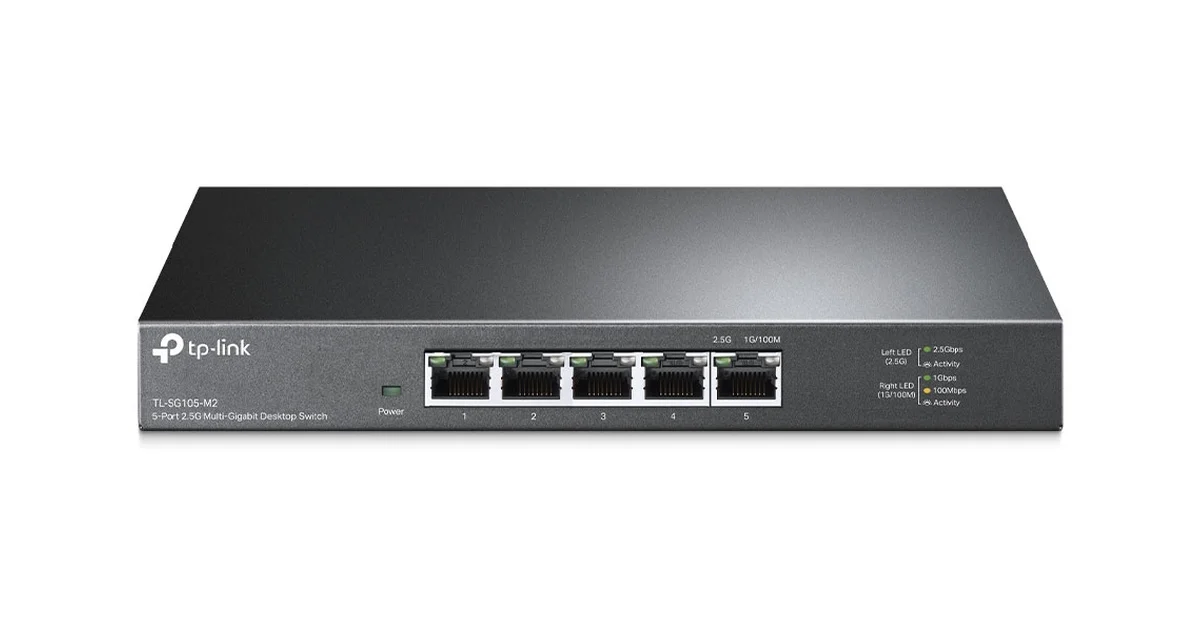
A simple unmanaged switch is enough for a flat home network. The TP-Link TL-SG105-M2 is the shape I like for this job: five fanless 2.5GbE ports, a metal enclosure, and no configuration screen to maintain. TP-Link rates it for 25Gbps of switching capacity, so all five ports can operate without the tiny router uplink becoming an internal bottleneck.
Location matters more than network hierarchy. Put the switch wherever the two fast devices can reach it cleanly. That might be beside the NAS, under a desk, or in a wiring cabinet. It does not need to replace the main household switch. A small fast edge switch attached to an older core is a perfectly legitimate design when only two or three devices need multi-gigabit speed.
Upgrade Both Endpoints, Not the Whole House
The switch cannot make a gigabit port negotiate faster. Check the specifications for both endpoints before buying anything. Many newer NAS boxes already include 2.5GbE. Some accept a supported PCIe card or USB adapter. Others have no practical upgrade path, which is the fact to learn before the switch arrives.
For a desktop or server with a spare slot, an RTL8125 2.5GbE PCIe card is inexpensive and tidy. For a laptop, mini PC, or compatible NAS, an RTL8156 USB 3 adapter is the easy path. Plug that adapter into a true USB 3 port. A USB 2 port cannot feed a 2.5GbE link at full speed.
Do not assume a NAS supports every USB Ethernet adapter just because Linux does. Synology, QNAP, TrueNAS, Unraid, and generic Linux installations handle drivers differently. Check the current compatibility notes for your exact operating system and model. A PCIe card is usually the more predictable choice when the chassis offers a slot.
Existing Cat5e in the walls should remain. The 2.5GBASE-T standard was designed to use Cat5e, and normal home runs are well inside its distance limit. I start with the installed cable and only replace a patch lead if the port negotiates at 1GbE or drops under load. New Cat6 patch cables are cheap insurance at the device ends, not a reason to open walls.
The Storage Still Sets the Real Speed
A 2.5GbE link has a theoretical ceiling of 312.5 megabytes per second. Protocol overhead means a clean real transfer lands below that. Gigabit Ethernet has a theoretical ceiling of 125 megabytes per second and commonly delivers around 110 in a file copy. That makes 2.5GbE a meaningful jump, but it does not guarantee every NAS will suddenly write near 300.
A single spinning hard drive may sustain roughly 150 to 250 megabytes per second depending on the drive, file location, and workload. A mirrored pair does not automatically double write speed. A striped pool, SSD cache, or all-flash storage can feed the network more easily. Small files are slower than one large sequential file because filesystem and protocol work begins to dominate.
This is still a successful upgrade if the NAS becomes the bottleneck. The point is to stop the network from holding storage at gigabit speed. A transfer rising from roughly 110 to 180 megabytes per second is useful even if it never approaches the line-rate ceiling. Backups finish sooner, large media files move faster, and virtual-machine storage feels less constrained.
Measure the workload you care about before and after. Do not judge the project by an internet speed test, because that test leaves the local switch and heads straight for the unchanged router. Copy a large file from the NAS, run a network-only throughput test, and watch disk activity. Those three observations separate network limits from storage limits.
The Important VLAN Exception
The no-new-router design assumes the PC and NAS share a subnet and Layer 2 network. If the PC lives on one VLAN and the NAS lives on another, their traffic must be routed between networks. Now the router or Layer 3 switch is back in the data path, and a gigabit routing interface can cap the transfer.
This catches careful home-lab builders who isolate servers from trusted clients. The segmentation is valid, but it changes the upgrade. You either need a router capable of multi-gig inter-VLAN routing, a Layer 3 switch that can route the relevant networks at wire speed, or a deliberate same-VLAN fast path that still matches your security model.
Managed switching alone does not make inter-VLAN traffic fast. A managed switch can tag and separate VLANs, but many inexpensive models still send traffic to the router for routing. Read the hardware specifications rather than assuming the word “managed” includes line-rate Layer 3 forwarding.
For a flat network, buy unmanaged and keep this simple. For VLANs, draw the packet path first. My fanless OPNsense firewall build is the next step when the router genuinely must move multi-gig traffic between networks. That is a real reason to upgrade the router, unlike a same-subnet NAS copy.
WiFi Is a Separate Bottleneck
A wired desktop and wired NAS can use the full fast island. A laptop on WiFi has another link in the path, and its real speed depends on the client radio, access point, channel width, interference, distance, and the Ethernet uplink feeding the access point.
If the access point has a gigabit Ethernet port, no wireless marketing number can make the NAS path exceed that uplink. A modern access point with a 2.5GbE port can join the fast switch and remove that specific limit, but the laptop may still deliver less than 2.5Gbps over the air. That is normal. WiFi is shared radio time, not a dedicated cable.
Do not buy a new router just to get a faster access point. Router, switch, and WiFi can be separate devices. You can keep the gigabit router, connect a multi-gig access point to the 2.5GbE switch, and give capable wireless clients a faster local path to the NAS. The internet side remains gigabit while local WiFi transfers improve.
This modular approach is why I prefer building the fast island first. You can upgrade the exact bottleneck later without throwing away working equipment. If most NAS use comes from one wired workstation, skip the WiFi upgrade entirely.
Verify Every Link Before Testing Files
After connecting everything, check the negotiated link speed at both endpoints. The PC and NAS should each report 2.5Gbps, and a switch with per-speed LEDs should show the expected state. If either endpoint reports 1Gbps, the file transfer cannot exceed gigabit no matter what the box says.
Reseat the cable, try another switch port, and swap the short patch lead before blaming in-wall wiring. Confirm the USB adapter is in a USB 3 port and that the operating system loaded the correct driver. Some energy-saving settings can also cause unstable negotiation on cheap adapters, so update the driver before returning hardware.
Next run iperf3 between the PC and NAS if the NAS supports it. This test moves data through memory and the network without making disks part of the result. A strong network test with a slow file copy points at storage, encryption, SMB settings, or small-file overhead. A slow network test means the Ethernet path itself still needs attention.
Finally copy one large file in each direction. Reads and writes can differ because the NAS storage layout and caches differ. Record the steady speed after the initial cache burst, not the first impressive number. The goal is not to win a screenshot. It is to know which part of the system is now limiting real work.
When a 2.5GbE Router Is Worth Buying
There are legitimate reasons to upgrade the router. A multi-gig internet plan needs a WAN port and routing performance above one gigabit if you want one client or several clients to use the extra capacity. Heavy traffic between VLANs needs fast routing. Running IDS or IPS at multi-gig speed also demands enough CPU to inspect that traffic without collapsing throughput.
A router upgrade can also simplify the layout if the current all-in-one has too few ports, unreliable firmware, or WiFi that needs replacement anyway. In that case, buy for the whole set of requirements rather than treating a 2.5GbE label as proof of performance. A device may have one multi-gig port but only gigabit LAN ports, or enough port speed without enough CPU for inspection and VPN workloads.
None of those reasons applies to a plain file copy between a PC and NAS on the same switch and subnet. That traffic does not ask the router for permission after the connection is established at Layer 2. Spend the router money when routing is the bottleneck, not when switching is the job.
The Bottom Line
You do not need to replace a working gigabit router to make local NAS transfers run at 2.5GbE. Build a small fast island instead: connect the router, PC, and NAS to a five-port 2.5GbE switch, then make sure the PC and NAS each have a 2.5GbE port. The router uplink can remain gigabit because same-subnet file traffic stays on the switch.
Use an RTL8125 PCIe card for a desktop or server, or a compatible RTL8156 USB adapter for hardware without a slot. Keep the Cat5e already in the walls, verify both links negotiated at 2.5Gbps, run iperf3, and then test the file workload that made you care in the first place.
The exception is routing. If the PC and NAS live on different VLANs, or if your goal is multi-gig internet, the router really is in the path and must be sized for it. Draw the path before buying boxes. For the common same-network NAS upgrade, one quiet switch and two fast endpoints are enough.