I delayed my first Zigbee coordinator migration because I pictured a weekend of deleting and re-pairing every sensor in the house. That is the wrong mental model. A coordinator migration is a database and radio handoff. The devices already know a network identity, and a good backup preserves the information needed for the new radio to take over.
The important word is good. A coordinator swap is not the time to discover that the only backup was a screenshot, that the new adapter uses a different firmware family, or that the old USB path was never written down. I now treat the move like a small infrastructure change: inventory first, backup twice, preserve the channel, change one thing, and keep a rollback path until the house has survived a normal day.
This is the companion to my Zigbee devices for Home Assistant guide and my Zigbee2MQTT versus ZHA comparison. It covers the migration decision, not a particular brand. If your current network is merely weak, fix the mesh placement and interference problems before replacing the coordinator.
Decide Whether You Need a Migration
A new coordinator can solve a real problem: unsupported firmware, a failing USB radio, a network that has outgrown an old adapter, or a server location that makes the radio impossible to place well. It cannot fix a coordinator hidden beside a USB 3.0 SSD, a dead zone with no routers, or a bad WiFi channel plan.
I start by writing down the symptom. If devices disappear everywhere, firmware or hardware is plausible. If only the far bedroom fails, relocating the radio on a shielded USB 2.0 extension cable may be the better fix. If the network is healthy but the adapter is obsolete, migration makes sense.
A second coordinator does not join the first network as a spare. It creates another Zigbee network. That can be useful for a detached building or a deliberate split, but it is not a hot standby. For a normal house, migrate one coordinator and keep the old device available for rollback.
Pick the Replacement Before Touching the Old Network
Compatibility matters more than the antenna photo. Confirm that the replacement works with your integration, operating system, and current coordinator firmware family. A USB adapter, an Ethernet coordinator, and a radio built into a Home Assistant appliance can each be valid, but the backup and restore workflow differs.
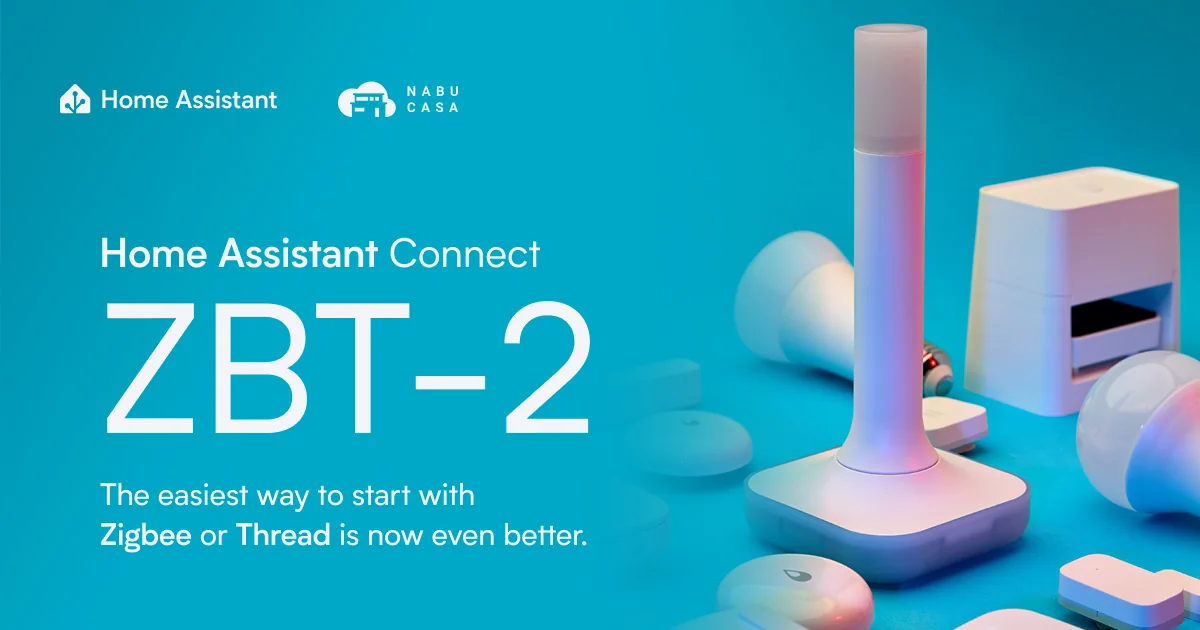
I prefer an adapter with a documented firmware path and a stable connection. The SONOFF ZBDongle-E from SONOFF with code JPK (Amazon fallback) is one practical choice for ZHA and Zigbee2MQTT. I would still verify the current compatibility notes before ordering because coordinator support moves faster than printed packaging.
Write down the serial device path, integration name, radio type, firmware version, channel, PAN ID if visible, and network key if your stack exposes it. Do not paste network keys into a public note. The purpose of the inventory is to make the change reversible, not to create a second secret store.
Make a Device Inventory
Before the outage window, export or record every device by room. I include the entity name, manufacturer, model, battery level, and the automation that would make the failure obvious. A door sensor that triggers a light is a better migration test than an idle temperature sensor because it produces an event I can see immediately.
I also record the devices that are hard to reach. A sensor mounted behind an appliance, a leak sensor under a cabinet, and a switch in a detached room can turn a small repair into a ladder project. Knowing those devices exist changes how long I keep the old coordinator available.
Take screenshots of the integration device list and network map, but do not confuse screenshots with a backup. The screenshots help you compare the post-migration state. They cannot restore network information.
Back Up Home Assistant and the Zigbee Stack
Create a full Home Assistant backup before changing the radio. Download a copy or put it somewhere independent of the Home Assistant host. Then create the integration-specific backup using the workflow for your stack.
With ZHA, use the built-in backup facility and save the generated file outside the machine being changed. The backup should include the network settings and device information needed for a replacement radio. With Zigbee2MQTT, stop treating the configuration directory as disposable. Back up its data directory, configuration, database, and coordinator-related files, then note the exact adapter type and port configuration.
I make two checks before proceeding. First, I open the backup file or restore screen far enough to confirm it is a real backup, not a zero-byte download. Second, I verify that Home Assistant can still see the current coordinator after the backup. A backup made after a radio has already begun failing may not represent the network you think it does.
Do not update the old coordinator, change the Zigbee channel, rename half the entities, and migrate on the same evening. The cleanest migration changes one variable. Preserve the channel, network identity, and device names first. Optimization can come later.
Preserve the Channel and Network Identity
The easiest migration is boring: the new coordinator joins the existing logical network. That means keeping the current channel and the network identity from the backup. The devices are not being invited to a brand-new network. They are being given a new radio that represents the same one.
This is why I avoid a channel change during the move. Zigbee channels overlap with 2.4GHz WiFi, and a different channel may eventually be the right fix, but it creates a separate repair risk. If the migration fails after a channel change, you cannot tell whether the issue is the radio, the restore, or the new RF environment. Preserve first, tune second.
There is one exception: if the old channel is clearly unusable and the migration is part of a planned RF redesign. In that case, announce the maintenance window, expect some devices to need repair, and treat it as a new project. Do not promise a no-repair migration while intentionally changing the network identity.
The Physical Swap
Stop the Zigbee integration cleanly before unplugging the old coordinator. Label the old adapter and put it somewhere safe. Plug the replacement into the same kind of connection, but do not assume the operating system gives it the same device path. Update the integration configuration to the new path or serial identifier, then restore the network backup.
If the radio is going into a rack, place it away from USB 3.0 storage, access points, metal panels, and the server chassis. A migration is a poor time to preserve a physically bad installation. An adapter that is logically correct can still produce a weak network if the antenna is trapped behind a computer.
Start the integration and watch for errors before touching a device. I look for a coordinator connection, the expected channel, a sensible device count, and the absence of a startup loop. I do not immediately reconfigure an entity because it appears unavailable for a few minutes. Battery devices sleep, and the mesh may need time to rebuild routes.
Test in Layers
I test the migration in this order:
- Confirm the coordinator is online and the integration reports the preserved network settings.
- Trigger a mains-powered router, such as a switch or plug, and confirm its state changes.
- Trigger a nearby battery sensor.
- Trigger a distant battery sensor in the room most likely to expose a routing problem.
- Run one important automation and inspect its trace.
- Check the device count and unavailable list against the inventory.
The first test proves the radio is talking. The distant sensor proves the mesh is still functioning. The automation proves that the migration preserved the Home Assistant entities that matter to the household.
I leave the network alone overnight. Do not start repairing devices because the map looks sparse immediately after startup. A sleepy device may not report until it wakes, and a router may need time to accept children. If an important device remains unavailable after its normal wake period, repair that one device in its final location rather than resetting the entire network.
Roll Back Without Panic
Keep the old coordinator untouched until the new network has passed a normal day of doors opening, lights switching, and automations firing. If the new radio fails, stop the integration before reconnecting the old one. Restore the previous configuration and test one known-good device.
Do not run both coordinators against the same Zigbee network. That is not redundancy. It is two radios competing to represent one network, and it can make diagnosis harder. The old coordinator is a rollback asset, not an active second path.
If rollback works, preserve the logs from the failed attempt. Check the backup type, firmware compatibility, serial path, and physical placement before trying again. A clean rollback is useful evidence, not a defeat.
When Devices Still Need Repair
No migration guide can guarantee zero repairs for every device. Older coordinators, proprietary devices, incomplete backups, and firmware changes can leave individual devices behind. Repair the smallest possible set. Start with devices that are genuinely unavailable after the network has settled, not every device whose last-seen timestamp is old.
Before repairing, confirm the device has power and a fresh battery. Put the router that should serve it online first. Then pair or reconfigure it in the room where it belongs. Restore the existing entity name if necessary so automations do not needlessly change.
A device that repeatedly fails to rejoin is a compatibility clue. Check its model support, coordinator firmware, and integration notes. Do not keep factory-resetting it without collecting evidence.
The Bottom Line
A Zigbee coordinator migration should preserve the network, not recreate it. Choose a compatible replacement, inventory the devices, save a real Home Assistant backup and an integration backup, preserve the channel, and swap one variable at a time.
Test a router, a nearby sensor, a distant sensor, and a real automation. Leave the old coordinator untouched until the house has completed a normal day. If something fails, roll back first and investigate second. That turns a frightening whole-home repair into a controlled infrastructure change, and most of the time the devices never know the radio changed.