Replacing a Zigbee coordinator sounds like the worst kind of smart-home project. The radio is tiny, but it holds the identity of a network that may include every switch, sensor, plug, and button in the house. The obvious fear is spending a weekend opening battery covers and rebuilding automations.
That is not how a supported migration should work. Both ZHA and Zigbee2MQTT can preserve an existing Zigbee network when the right backup follows the right radio. The devices keep the same network credentials, Home Assistant keeps the same entities, and most of the mesh returns after the new coordinator starts.
The catch is that this is not a casual unplug-and-swap. A successful move preserves two different layers of data, avoids changing the network identity by accident, and gives sleepy devices time to rejoin. I handle it like a small database migration: back up, change one thing, verify, and keep a rollback path.
If you are still choosing hardware, start with my Zigbee coordinator guide for Home Assistant. This guide starts after you have a supported replacement radio in hand.
Step 0: Identify the Stack Before Touching the Radio
The first gate is not the coordinator model. It is the software currently controlling it. Open Home Assistant’s Integrations page and confirm whether the network belongs to ZHA or Zigbee2MQTT. If it belongs to deCONZ, a Hue Bridge, or another gateway, stop and follow that platform’s migration instructions instead.
ZHA and Zigbee2MQTT store network state differently. ZHA has a migration flow in the Home Assistant interface. Zigbee2MQTT relies on its data directory, adapter configuration, and coordinator backup support. Mixing the two sets of instructions is how a recoverable radio swap turns into a new network.
Also identify the radio family at both ends. ZHA currently documents migration among supported Silicon Labs, Texas Instruments, and ConBee or RaspBee adapters. Zigbee2MQTT documents coordinator backups for zStack and EmberZNet adapters. Compatibility changes over time, so check the official adapter page for the exact old and new models before assuming that two Zigbee 3.0 labels make them interchangeable.
I prefer changing the coordinator while leaving the Home Assistant host, Zigbee stack, network channel, and device database alone. Moving Home Assistant to new hardware at the same time creates too many possible causes when something does not return. Migrate the radio, prove the mesh is stable, make a fresh full backup, and only then move the host if that is part of the project.
Back Up Both Layers, Not Just the USB Stick
A Zigbee migration has a radio layer and an application layer. The radio backup contains the network identity: channel, network key, PAN information, and coordinator identity. The application database contains device records, friendly names, entity relationships, and the information your automations expect.
For ZHA, create a current Home Assistant backup and download a manual Zigbee network backup from ZHA’s Network Settings. Keep both files somewhere outside the Home Assistant box. Home Assistant says ZHA also creates automatic network backups, but the manual download gives you a known file from immediately before the move.
For Zigbee2MQTT, stop treating coordinator_backup.json as the entire backup. Save the whole Zigbee2MQTT data directory, including its device database and configuration, plus a current Home Assistant backup. If you run the Home Assistant add-on, the folder name and storage location differ from a standalone container, so use the add-on backup mechanism rather than guessing a host path.
Take one more low-tech backup: screenshots or a short list of the device count, current Zigbee channel, old coordinator IEEE address, and a few critical entity names. Those facts make it obvious whether the restored network matches the old one. They also stop you from accepting a fresh empty network simply because the integration starts without an error.
The ZHA Migration Path
ZHA has the cleaner path because Home Assistant manages the operation. Go to Settings, then Zigbee, and choose Migrate. Plug in the new adapter when the flow asks for it, select the new serial device, and choose the automatic migration unless you have a specific older backup you need to restore.
The important prompt is the coordinator IEEE address. Some migrations require ZHA to overwrite the new radio’s IEEE address with the old radio’s identity. Home Assistant warns that this is permanent and requires an explicit confirmation. That is not cosmetic. Existing devices may remember the coordinator identity in their tables, so carrying it forward is part of making the new hardware look like the same network.
Follow the prompt rather than trying to preconfigure a fresh network on the replacement radio. A newly formed network can generate a different channel, key, PAN, and coordinator identity. If you restore the wrong state after that, the old devices can remain listed in Home Assistant while being unable to communicate.
When ZHA says the migration is complete, remove the old adapter and leave it disconnected. Home Assistant notes that the old and new radios may now share an IEEE address. Two active coordinators presenting the same identity in the same area are not a failover pair. They are a collision.
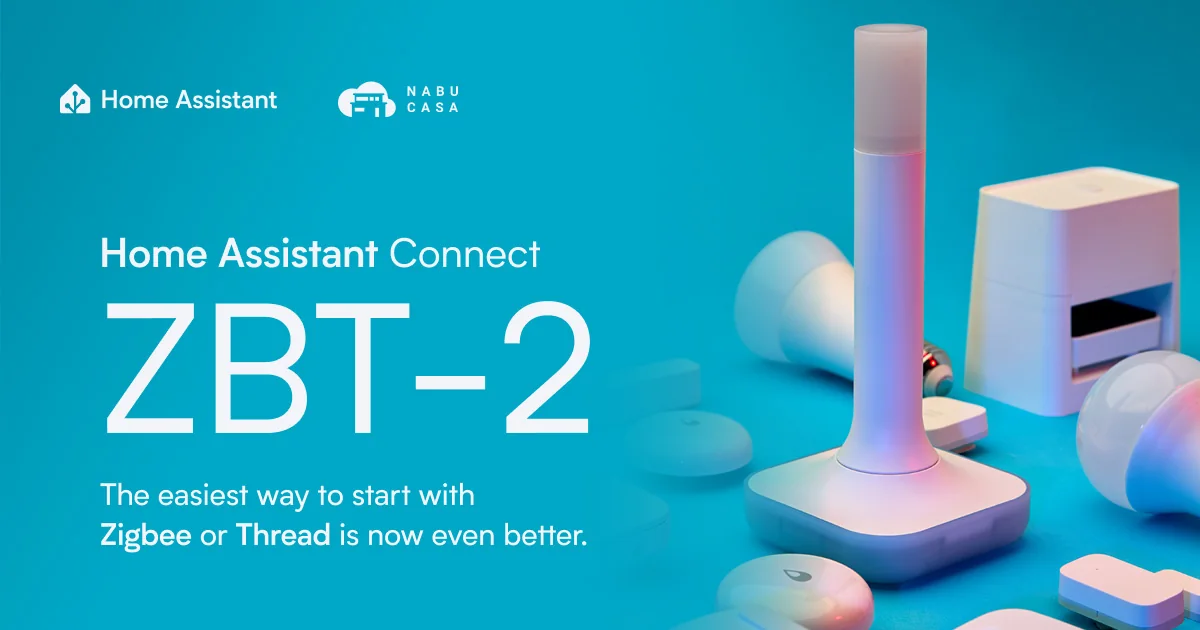
A Home Assistant Connect ZBT-2 is the simple official replacement if it fits your stack. Whatever radio you choose, put it on a shielded USB 2.0 extension cable and keep it away from USB 3 hardware. A successful backup cannot compensate for a noisy new radio location.
The Zigbee2MQTT Migration Path
Zigbee2MQTT requires more discipline because the exact process depends on the adapter family. Start by checking its current supported-adapters documentation and FAQ for both radios. The project says coordinator backup support currently applies to zStack and EmberZNet adapters, and its no-re-pair guidance may require copying the old adapter’s IEEE address into the replacement.
Stop Zigbee2MQTT before changing hardware or files. Confirm that your full data-directory copy is safe, then connect the new radio and update only the serial connection and required adapter type for that hardware. Preserve the existing device database, network settings, and coordinator backup rather than allowing the service to create an empty data directory.
Do not delete the coordinator backup or device database to make a startup error disappear. Zigbee2MQTT explicitly warns that removing those files can reset the network and require every device to be paired again. An error about adapter or network settings is a reason to stop and compare the backup, serial path, adapter type, and IEEE identity. It is not permission to erase the evidence.
This is also where an Ethernet coordinator deserves extra care. Its socket address, port, radio family, and flow-control settings must match the hardware documentation. A reachable IP address proves only that the box is online. It does not prove Zigbee2MQTT is talking to the correct radio with the correct protocol.
Do Not Judge the Mesh in the First Five Minutes
After the new coordinator starts, the device list should still exist, but not every device will be immediately responsive. Mains-powered routers tend to return first. Battery sensors may sleep for long intervals and will not report until they wake, change state, or receive a button press.
Give the network up to an hour before declaring failure. Walk through the house and trigger motion sensors, open contact sensors, press remotes, and change a thermostat setpoint. For plugs, bulbs, and hardwired switches that remain unavailable, power-cycle the individual device so it rejoins and rebuilds its route.
Do not reset a device unless you have decided to pair it again. A normal power cycle or button press wakes the device without erasing its network membership. Holding a reset sequence can turn a slow rejoin into actual repair work.
I verify from the center outward. First I test a powered device near the coordinator, then one router on each floor, then the farthest battery sensors. That pattern tells me whether I have a dead network, a missing router backbone, or only sleepy end devices. It is more useful than repeatedly restarting Home Assistant and changing every variable at once.
If the coordinator moved from USB to Ethernet, its physical radio location may have changed dramatically. Better placement can cause the mesh to choose new parents and routes. Let it settle overnight, then use my weak Zigbee mesh troubleshooting order if one area remains unreliable.
Verify the Things That Matter
A migration is not done because the integration card turns green. Count the devices and compare the result with your pre-migration note. Confirm the Zigbee channel matches. Check that familiar entity IDs still exist and that automations using them fire without edits.
Then test by device role:
- Toggle several mains-powered routers from Home Assistant and from their physical controls.
- Trigger contact, motion, temperature, and leak sensors in their actual rooms.
- Press battery remotes and verify every expected event appears.
- Run at least one automation that crosses device types, such as motion to light.
- Review the unavailable-device list after an hour and again the next morning.
This catches the subtle failure where the network is technically alive but one router never returned, leaving several battery devices stranded behind it. It also catches entity churn before a nighttime or safety-related automation is expected to work.
When the checks pass, make a fresh Home Assistant backup and a fresh Zigbee network backup from the new coordinator. Label the old pre-migration backup and keep it. The new backup is the recovery point for the hardware now in service.
When to Roll Back
Roll back when the new coordinator forms a different network, the channel or identity changes unexpectedly, most devices remain unreachable after an hour, or the Zigbee stack repeatedly reports incompatible network settings. Do not keep forcing repairs into a migration whose foundation is wrong.
Stop the Zigbee stack before reconnecting the old coordinator. The exact rollback depends on how far the migration went, especially if the old radio was reset or its network state advanced during the process. Use the pre-migration application backup and network backup together, then verify the old network before attempting the replacement again.
The temptation is to leave both radios connected and switch between them while troubleshooting. Resist it. If the migration copied the coordinator IEEE address, never operate both radios with that identity in the same area. Keep one coordinator active and one disconnected.
If the old radio has physically failed and cannot be read, the backups become the entire recovery path. That is why downloading a network backup while everything still works matters more than buying a spare stick after it breaks.
The Five Mistakes That Create Re-Pairing Work
The first mistake is starting without a downloaded network backup. Automatic backups are useful, but a known manual file stored off the host removes doubt when the radio itself can no longer answer.
The second is moving stacks and radios together. Replacing a coordinator inside ZHA is one project. Moving from ZHA to Zigbee2MQTT is another. Combining them removes the clean migration path and makes entity preservation much less predictable.
The third is restoring the wrong network state. Compare the channel, PAN information, and coordinator identity before accepting a backup. A newer timestamp is not automatically the correct choice if a failed attempt created a fresh network after your good backup.
The fourth is turning the old coordinator back on after its identity was copied. Store it disconnected and label it. If you later reuse it, reset it and ensure it has a unique IEEE address before bringing it anywhere near the migrated mesh.
The fifth is resetting devices too quickly. Routers need power cycles, battery devices need wake events, and the mesh needs time. A factory reset is the final step for one stubborn device, not the first response to an unavailable badge.
Once the network is stable, add the newly tested coordinator and migration backup to your maintenance notes. Zigbee is one of the best local protocols in my Home Assistant device guide, but local control still needs a recovery plan. The backup is what turns a failed coordinator from a weekend rebuild into a hardware replacement.
The Bottom Line
You can replace a supported Home Assistant Zigbee coordinator without re-pairing the house, but only if you preserve the network identity and the application database together. Confirm whether you run ZHA or Zigbee2MQTT, check compatibility for both radio families, download a current network backup, and save the complete Home Assistant or Zigbee2MQTT state before unplugging anything.
For ZHA, use the built-in Migrate flow and allow it to carry the coordinator IEEE address when prompted. For Zigbee2MQTT, follow the current adapter-specific documentation, preserve the full data directory, and never delete the coordinator backup or device database merely to clear an error.
After the swap, leave the old radio off. Give powered routers and sleeping battery devices time to return, trigger them without factory-resetting them, and verify device counts, entity IDs, automations, and the Zigbee channel. Then create a new backup from the replacement coordinator.
If you need new hardware, compare the current Zigbee coordinator options and budget for a USB 2.0 extension cable. The right migration keeps every entity in place. The right physical setup keeps you from needing another migration because the new radio sits in a cloud of USB interference.