At a Glance



I have built and torn down more desk setups than I care to admit. Some were driven by genuine ergonomic need, most by the specific procrastination that hits when a bug will not die and reorganizing your cables suddenly feels like progress. Along the way I learned which pieces actually move the needle and which are just expensive furniture.
This is the pillar guide: every category that matters, my top pick in each, and why. For the deep dives, I link out to the full comparison posts where I test the run-off contenders side by side. Think of this page as the map and the deep dives as the terrain.
Start With the Chair, Not the Desk
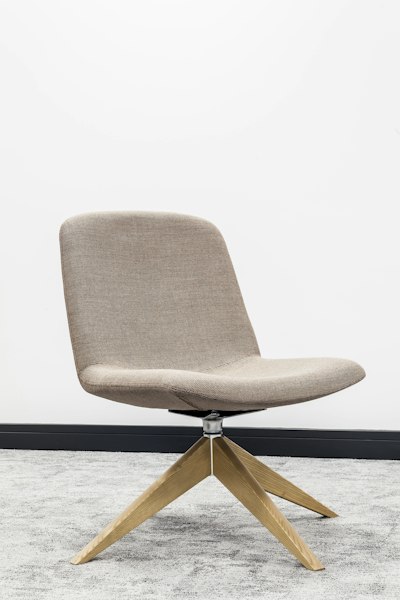
Everyone wants to talk about desks first because desks are visible and photogenic. But you sit in the chair. You do not sit in the desk. Your spine spends the entire workday negotiating with whatever you bought, and a bad chair charges interest in the form of lower-back pain that shows up around year two.
My pick is the Herman Miller Aeron. Yes, it is expensive. No, it is not a scam. The 8Z Pellicle mesh keeps your back cool through a summer crunch, the PostureFit SL actually supports the sacrum instead of just poking your lumbar, and the 12-year warranty means it outlasts three laptops. Buy it used and refurbished if new stings: a decade-old Aeron reupholstered is still a better chair than almost anything sold new at half the price.
If the Aeron is out of reach, the Steelcase Series 2 is the honest budget alternative. But do not put a $200 gaming chair with racing stripes under a body you need to keep working for the next thirty years.
The Desk: Go Sit-Stand or Go Home
Here is the thing about the “best desk for programmers” question: the desk surface itself barely matters. Flat, sturdy, wide enough. What matters is whether it moves.
A motorized sit-stand desk is the second-highest-value ergonomic upgrade after the chair, and my top pick is the FlexiSpot E7 frame. Dual-motor lift, 220 pound capacity, and a height range that goes low enough for short users and high enough for tall ones. Pair the frame with a bamboo or solid-wood top and you have a desk that outclasses pre-built units costing twice as much.
The value is not standing all day, which nobody actually does. The value is transitions. Stand up when you hit a wall in the debugger, sit back down when you find the thread. Your circulation and your focus both benefit. I go deep on frames, tops, capacity, and wobble testing in my best standing desks for programmers breakdown.
Monitors: Where Pixels Become Money
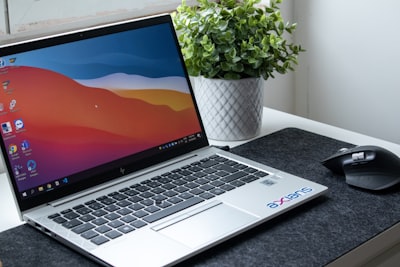
You stare at this thing every second of the workday, so this is not the place to save $150. My pick is the Dell UltraSharp 27 inch 4K, specifically the IPS Black panel models. At 27 inches, 3840x2160 gives you crisp text at a comfortable scaling factor, the contrast is genuinely better than standard IPS, and the built-in USB-C hub with 90W power delivery means the monitor can dock a laptop by itself.
Run two of them. Dual 27 inch 4K gives you an editor on the left, a browser or terminal on the right, and a hard bezel edge to slam windows against. That physical boundary is underrated: it is how most of us actually multitask. An ultrawide is tidier, but you lose the snap line.
I test color, text rendering, refresh rate, and the ultrawide-versus-dual debate in full in best monitors for coding.
The Dock: One Cable to Rule Them All
If you work off a laptop, a Thunderbolt dock is the quiet hero of the whole setup. My pick is the CalDigit TS4. Eighteen ports, 98 watts of host charging, dual display output, and enough bandwidth to drive two 4K panels while feeding ethernet, audio, and every peripheral on your desk.
The magic is the single-cable dock-and-go. Close the laptop, unplug one Thunderbolt cable, walk away. Come back, plug in once, and the entire setup wakes up exactly as you left it. After you live with it, going back to plugging in five separate cables feels prehistoric.
For a desktop tower, skip it and use the ports on the machine. For everyone else, I rank docks by bandwidth, thermals, and port layout in best USB-C docking stations for programmers.
Keyboard: The Tool You Touch Most
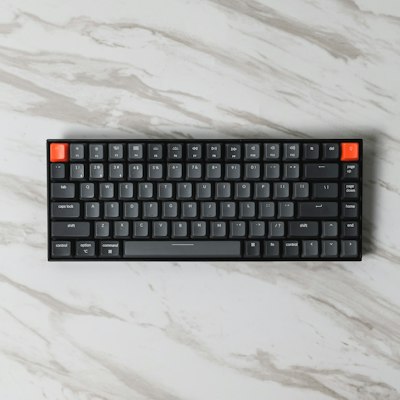
You press keys tens of thousands of times a day. A mushy membrane board is a tax on every one of them. My pick is the Keychron Q1: a 75% gasket-mounted, fully aluminum board with hot-swap sockets and QMK/VIA support, so you can remap every key without third-party software fighting your OS.
The 75% layout keeps arrow keys and a function row while ditching the numpad, which pulls your mouse hand closer and saves shoulder rotation over a full day. Hot-swap sockets mean you can try different switches without soldering: tactile browns for typing feel, linear reds if you want quiet and smooth.
Switches, layouts, and the whole “do I need a numpad” argument get the full treatment in best mechanical keyboards for programmers.
Mouse: Precision Without the Wrist Tax
The Logitech MX Master 3S is the default for a reason. The sculpted shape supports the whole hand instead of forcing a claw grip, the 8K DPI sensor tracks flawlessly on glass and desk alike, and the near-silent clicks spare everyone on your video calls. The MagSpeed wheel free-spins through a thousand-line file in one flick, then ratchets back for precision.
The real feature is Logitech Flow: one mouse and keyboard controlling multiple machines, dragging files across the boundary like they share a screen. If you run a work laptop and a personal desktop, it collapses two setups into one. The newer MX Master 4 adds haptic feedback and a refined shape, and I break down whether the upgrade is worth it in my Logitech MX Master 4 review.
Lighting: The Upgrade Nobody Photographs
Bad lighting is why your eyes feel sandblasted by 4 PM, and no amount of blue-light glasses fixes a dim room glaring against a bright screen. My pick is the BenQ ScreenBar monitor light bar. It clamps to the top of your monitor, throws asymmetric light down onto the desk without casting a single reflection on the panel, and adjusts color temperature so you can warm it up as the sun goes down.
It draws power from a USB port, takes zero desk footprint, and auto-dims to match ambient light. It is the cheapest item on this list and the one people notice least until they work a full day under it. Then they buy one immediately.
Cable Management: Where Setups Live or Die
None of the above matters if your desk looks like a server closet exploded. Cable management is not vanity, it is what makes a sit-stand desk actually usable, because a rat’s nest snags every time the desk lifts.
The playbook is short. Mount a cable tray or a wire raceway under the desk to hold the dock, power brick, and slack. Route everything to one corner. Use velcro ties, never zip ties, because you will re-route this in six months and zip ties make that a scissor job. Adhesive clips along the leg carry the cable bundle down to the floor in one clean run. Spend an afternoon on it once and it stays solved.
The tell of a mature setup is that raising the desk moves nothing but the desk. Cables travel with it, nothing pulls taut, nothing snags. Get there and you stop thinking about your desk entirely, which is the whole point.
The Bottom Line
A great developer desk setup is not about spending the most money, it is about spending it in the right order. Chair first, because your spine cannot be refunded. Monitor next, because your eyes work every second you are awake at the desk. Then the desk frame, the dock, the keyboard, the mouse, and the small stuff that quietly compounds.
If I had to build one from scratch tomorrow on a real budget, it would be a used Aeron, a FlexiSpot E7 under a solid top, a single Dell UltraSharp 4K with a second added when the budget recovers, a CalDigit TS4 if I docked a laptop, a Keychron Q1, an MX Master 3S, and a BenQ ScreenBar on top.
That is roughly $1,500 to $3,000 for gear that lasts five to ten years. Amortized, it is a few dollars a week for the single place you spend most of your waking life. Buy once, buy deliberately, and stop reorganizing cables as a substitute for fixing the bug.