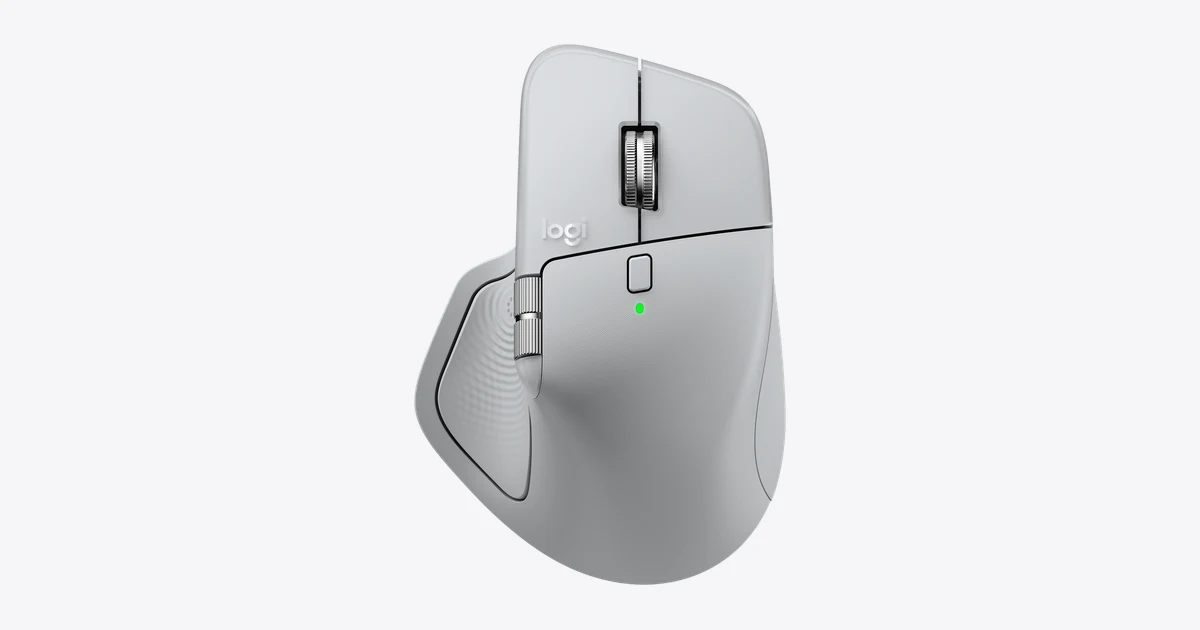
I have used an MX Master mouse since 2017. The MX Master 2S replaced a Logitech Performance MX that had finally rolled to death after seven years. The 3 replaced the 2S the week it came out. The 3S replaced the 3 the day I realized I could not hear my own scroll wheel anymore. So when Logitech shipped the MX Master 4 with haptic feedback as the headline feature, I was suspicious. The 3S is essentially perfect. What does haptic feedback add to a mouse?
A month later, I have a real answer. It adds one genuinely useful thing, ignores a few obvious opportunities, and earns its $120 price tag only if you fall into a specific bucket of user. Here is the long form.
What’s Actually New
Compared to the MX Master 3S, this is what you are paying for:
- Haptic feedback motor in the body. It produces subtle, distinct buzzes for different events.
- Refreshed Darkfield sensor. Logitech says 8000 DPI vs 8000 DPI. Functionally identical for me. They have changed something internally because it tracks slightly better on the one piece of weird glass in my office, but that is below the threshold of “you would notice.”
- Updated Logi Options+ with a new feature called Actions, which is an on-demand menu that floats next to your cursor when you trigger it. The haptics fire when you scroll through Actions items, which is the killer use case for the motor.
- Same shape, same buttons, same MagSpeed wheel. This is not a redesign. It is an iteration.
If you were hoping for a redesigned body, a new gesture button, or a flat low-profile variant, the MX Master 4 is not that mouse. The hand shape is the same hand shape Logitech has been refining since 2015 and that is fine, because it is correct.
The Haptic Feedback, Honestly
The motor is not a phone-style click haptic. It is a small low-frequency pulse, more like the gentle bump of a Magic Trackpad’s Force Touch than the snap of an iPhone. It is restrained on purpose.
Where it matters:
- Actions menu navigation. When you tap the gesture button (the one under your thumb) and the Actions wheel pops up around your cursor, each item you hover gives you a tiny tactile bump. After a week your thumb learns to trust the haptic instead of your eyes, and you start triggering Actions without looking. That is the productivity gain. It is real.
- Volume scrolling. Hold the gesture button and roll the wheel, and you get tactile detents for each volume step. Sounds gimmicky, ends up being the kind of thing you do not realize you missed until you go back to a mouse without it.
- DPI shifts. A double-buzz when you cycle DPI presets. Cute. Not life-changing.
Where it does not matter:
- Scrolling normally. No haptics, which is correct. The MagSpeed wheel is already silent and dampened, and adding buzz to normal scroll would be exhausting.
- Clicking. No haptics on clicks either, which is right.
The honest evaluation: the haptics make Actions usable as a thumb-driven launcher. That is the whole win. If you are not going to install Logi Options+ and configure Actions, the motor inside this mouse does almost nothing for you.
The Rest of the Mouse, Which Was Already Great
Most of why the MX Master 4 is good is because the MX Master 3 was good and Logitech did not screw it up.
- MagSpeed scroll wheel. Spin it slowly, it ratchets. Flick it hard, it free-spins and you scroll through a 5000-line file in about a second. There is no other mouse with this. I have tried.
- Thumb wheel. Horizontal scroll for spreadsheets, video timelines, side-scrolling Tweetdeck. Two years in and I still use this every day.
- Three-device pairing. The Easy-Switch button on the bottom hops between three paired hosts. I pair it to a personal Mac, a work Mac, and a Linux desktop. Switching is sub-second.
- USB-C charging. Plug it in for a minute, get three or four hours. A full charge lasts about a month and a half of normal coding.
- Logitech Flow. With Logi Options+ on both machines, drag your cursor to the edge of one display and it hops to another physical computer, copying clipboard contents with it. I use this constantly for moving snippets between work and personal machines.
None of this is new in the MX Master 4. It is all here, and it all still works exactly as well as it did on the 3S.
Logi Options+ Is the Catch
To get any value out of the haptics, you have to install Logi Options+. It is a 300 MB desktop app that runs in the background, eats roughly 200 MB of RAM, and shows you a “what’s new” splash about twice a month. On macOS it has a habit of asking you to re-grant Accessibility permissions after every OS update.
If you live in the terminal and resent every background app on your machine, this will annoy you. The alternative is to use the mouse without Options+, in which case you have a $120 mouse that performs identically to a $90 used 3S.
I begrudgingly leave Options+ installed because Flow and the Actions menu are genuinely useful. Your tolerance may differ.
Mac vs Windows/Linux Variants
Logitech sells two SKUs of the MX Master 4. They are the same mouse internally.
- The Graphite version is the standard Windows/Mac/Linux model. Works fine on macOS via Options+.
- The Space Black “for Mac” version ships without the Bolt USB receiver, since recent Macs no longer have USB-A. It is Bluetooth-only out of the box.
If you have any Linux or Windows machine in your rotation, get the Graphite. The Bolt receiver still matters on any host where Bluetooth LE handshake latency on wake annoys you. If you are 100 percent macOS and aesthetics matter to you, the Space Black is gorgeous.
Should You Upgrade from the MX Master 3S?
This is the only hard question, and the answer depends on whether you will use the Actions menu.
If you already have keyboard shortcuts and a launcher (Raycast, Alfred, Spotlight power user) wired into your muscle memory: skip the upgrade. The 3S is a $90 mouse that does 95 percent of what the 4 does, and your shortcuts already do what Actions does, with no Options+ requirement.
If you are a mouse-first user who tends to drift to the menu bar instead of hitting cmd-space, the Actions menu is going to change your day-to-day. Get the 4.
If you are coming from an MX Master 2S or earlier, the MagSpeed wheel alone is worth the upgrade. Do not wait.
If you are coming from a non-Logitech mouse and your wrist hurts, the hand shape of this mouse is the most-thoroughly-iterated palm grip in the industry. The upgrade is obvious.
What I’d Still Like Logitech to Fix
A short wish list for the inevitable MX Master 5:
- Left-handed model. Genuinely embarrassing in 2026 that this line is right-hand-only.
- Optional flat profile. The MX Anywhere is the only travel-friendly option in this family and it sacrifices the thumb wheel. A flatter MX Master would sell.
- A keyboard shortcut for “open Actions” that does not require the gesture button. I have remapped Caps Lock to Hyper on my keyboard and would love to bind Hyper-Space to open Actions, mouse-pointer-agnostic.
- Options+ daemon that is not 300 MB of Electron. This is a mouse driver. Make it a CLI plus a tiny menu bar app.
The Bottom Line
The Logitech MX Master 4 is the best productivity mouse you can buy in 2026, the same way the MX Master 3S was the best productivity mouse you could buy in 2024. The hand shape is correct, the scroll wheel is unbeaten, the multi-device hopping is best in class, and the new haptic feedback genuinely makes the Actions menu a usable thumb-driven launcher.
The catch is that the haptics, the new headline feature, are useless without Logi Options+ installed and configured. If you already live in a keyboard launcher, you can keep your MX Master 3S another two years and lose almost nothing. If you do not, and the Actions menu sounds appealing, the MX Master 4 earns the upgrade price.
For everyone else, including anyone coming from a non-Logitech mouse or any MX Master older than the 3: this is the mouse. Buy it once, use it for five years, replace it with whatever the MX Master 5 turns out to be in 2029. That is what I plan to do.