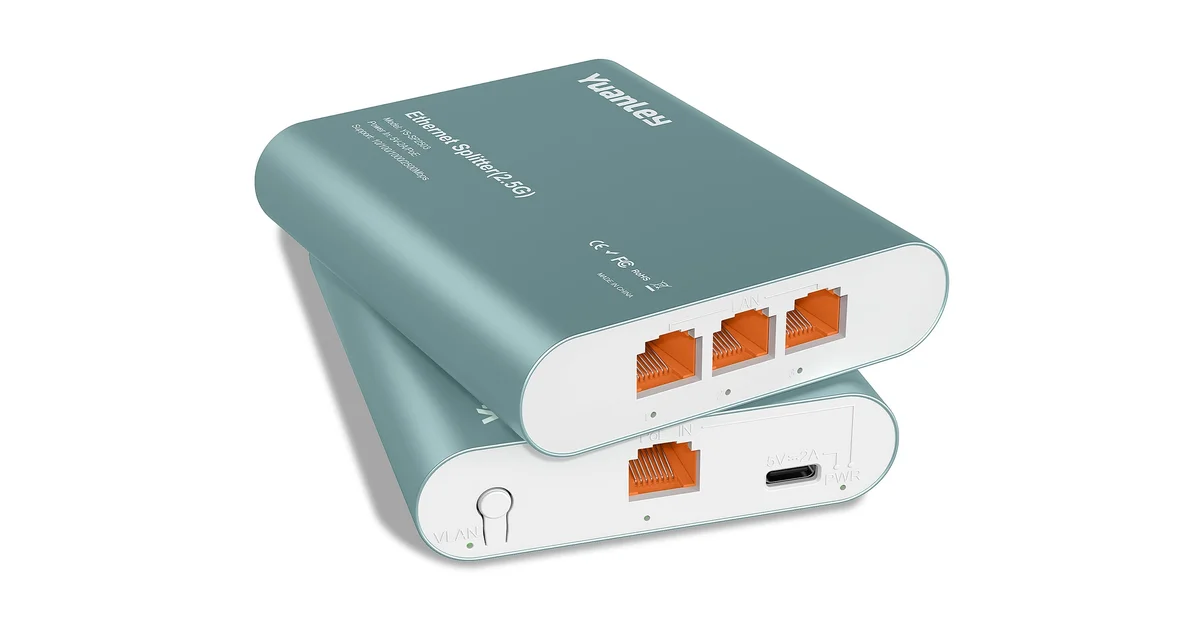
A 2.5GbE switch is an easy purchase to rationalize and an easy purchase to get wrong. The port labels look faster, but the switch sits inside a complete path: client, cable, NIC, switch uplink, server, storage, and software. If one important segment stays at 1GbE, the box may add ports without adding useful throughput.
I would choose a switch from traffic patterns, not from the largest number printed on the product page. The right model for a NAS, Wi-Fi access points, and a few desktops is different from the right model for a VLAN-heavy rack. This guide is how I make that distinction.
Start with the traffic map
List every device that will connect to the switch and write down its negotiated speed. Include the router, NAS, access points, desktops, cameras, servers, and the uplink to the rest of the network. Do not count a device as 2.5GbE because the motherboard specification says it has a 2.5GbE port. The cable and the switch port must negotiate at that speed too.
Then identify conversations, not just devices. A desktop copying to a NAS is a different load from a desktop browsing the internet. Two access points sending traffic to a router may use the uplink differently from a local backup between two workstations. This simple map usually reveals whether a 10GbE uplink matters.
If the only fast devices are one desktop and one NAS, a small switch can be enough. If four fast clients all hit a NAS, give the NAS a faster path to the switch or accept that they share the uplink. Adding more 2.5GbE ports does not remove an oversubscribed connection.
Pick port count with room to grow
Count ports for current equipment, then add a few for the devices you will actually install. I would rather have two spare ports than fill every socket on day one. A switch that is physically difficult to expand becomes a reason to buy another small switch, and that creates another power supply, management surface, and uplink decision.
Do not pay for sixteen multigig ports if the house has four wired fast clients. Spend the difference on a useful uplink, better cooling, or a switch with firmware and diagnostics you will continue to support.
PoE is a separate decision. If an access point, camera, or Ethernet Zigbee coordinator will be powered from the switch, verify the total PoE budget and the per-port standard. “PoE switch” is not enough. A switch can power one device successfully and still fail when several devices start together.
Decide whether managed is worth it
An unmanaged switch is a good answer for a flat home network. Plug it in, connect the devices, and let the router do the network work. There are fewer settings to misconfigure and fewer passwords to lose.
Managed becomes useful when you need VLANs, a dedicated management network, port statistics, storm control, link aggregation, or a deliberate separation between cameras, servers, and household clients. It is also useful when you want to see whether a cable is negotiating at 1GbE instead of guessing.
I do not buy managed hardware just to make a network diagram look professional. A VLAN plan that is never documented is more fragile than a flat network. Before choosing managed, write down the networks, tagged uplinks, untagged access ports, and the device that will provide DHCP and routing.
Avoid treating a switch as a firewall. VLANs can reduce accidental access, but the router or firewall still needs explicit rules. A managed switch with a friendly app does not make inter-VLAN traffic safe by itself.
The uplink is often the real specification
Many inexpensive multigig switches have several 2.5GbE edge ports and one 10GbE SFP+ uplink. That combination can be excellent if the uplink connects the switch to a router, core switch, or NAS with a compatible interface. It can also be annoying if you have never used SFP+ before.
An SFP+ port may accept a DAC cable, a fiber module, or a compatible copper transceiver, depending on the switch. Check the manufacturer’s compatibility list before assuming every module will work. A 10GbE SFP+ DAC cable is often the simplest short-rack option, but it is not a universal replacement for a long cable run.
If the switch only has a 1GbE uplink, calculate the worst shared load. One client may still see 2.5GbE when talking to another device on the same switch, but traffic going upstream will share the slower link. That may be fine for an office corner and frustrating for a NAS room.
Check the boring physical details
Fanless is attractive in a living space, but heat still has to leave the enclosure. A multigig switch in a sealed cabinet can become hot even when it has no fan. Leave air around it and do not stack it on top of a warm power supply.
Look at the power brick, mounting options, LED behavior, and reset process. A switch that has no rack ears is not a problem until you are trying to mount it in a small rack. Bright LEDs matter if the equipment lives in a bedroom or hallway. A lost configuration is easier to recover when the reset and default management behavior are documented.
Use proper cable for the run. Cat6 cable is a sensible default for ordinary residential 2.5GbE links, but old in-wall cable and bad terminations can still negotiate down. Test the actual path instead of blaming the switch for a marginal cable.
Verify performance without fooling yourself
A speed test to the internet is not a switch test. The result is limited by the service, router, remote server, and protocol. For local performance, use a file transfer or a throughput tool between two wired endpoints with fast storage and CPUs.
Test one client first, then test the simultaneous traffic you expect. Watch negotiated link speed, switch counters, CPU load, and storage performance. A NAS that can write 2.5GbE for ten seconds and then drops to hard-drive speed is not proving that the network is slow.
Test recovery too. Reboot the switch, unplug the uplink, power-cycle one access point, and verify that the expected devices return. If you use VLANs, test DHCP and routing from each network. A fast network that cannot recover from a short power event is not finished.
Match the switch to the home lab
For a desk with one fast workstation and one NAS, I prefer a compact switch with a useful uplink and clear link indicators. For a media cabinet with access points and cameras, PoE and the power budget become more important than adding a few extra 2.5GbE ports. For a rack with several servers, I would prioritize a 10GbE or faster core and use 2.5GbE at the edge.
If you are upgrading from gigabit internet, remember that internet speed and local network speed are separate projects. A 2.5GbE switch can let a fast service reach a capable router and client, but it will not improve a wireless device that is already limited by signal or a server whose storage cannot keep up.
I also avoid buying the cheapest unbranded switch solely because it has the right port count. Firmware support, thermal behavior, documented SFP+ compatibility, and a reliable recovery path have value. A bargain that drops links under load costs more when it sits at the center of the house.
Account for the boring upgrade path
A switch is rarely the only part of a multigig upgrade. Check whether the router has a matching port, whether the NAS needs a PCIe adapter, and whether the endpoints have drivers that support the intended speed. If you are replacing several links, label the cables before moving anything so a rollback is quick.
Keep the old switch available during the first week. Move one group of devices at a time and confirm link speed after each change. This is especially useful when an access point, camera recorder, or server has a fixed management address and you need to distinguish a switch issue from a configuration issue.
Power also deserves a place in the plan. A switch reboot is normal maintenance, but a switch that shares an overloaded power strip with a NAS and access point can turn a small electrical event into a full network outage. If the rest of the lab has UPS protection, include the switch and its power brick in the same tested path.
The Bottom Line
Choose a 2.5GbE switch by mapping real traffic, checking the uplink, and deciding whether you need management or PoE. A few fast edge ports are useful, but they do not overcome a 1GbE uplink, a slow NAS, a bad cable, or an underpowered router.
For a simple flat network, unmanaged is often the honest answer. Choose managed when you have a written VLAN or monitoring need. Leave thermal headroom, verify the actual cable paths, and test simultaneous local transfers instead of trusting an internet speed test. That is how a multigig upgrade becomes a useful home-lab improvement rather than another blinking box.