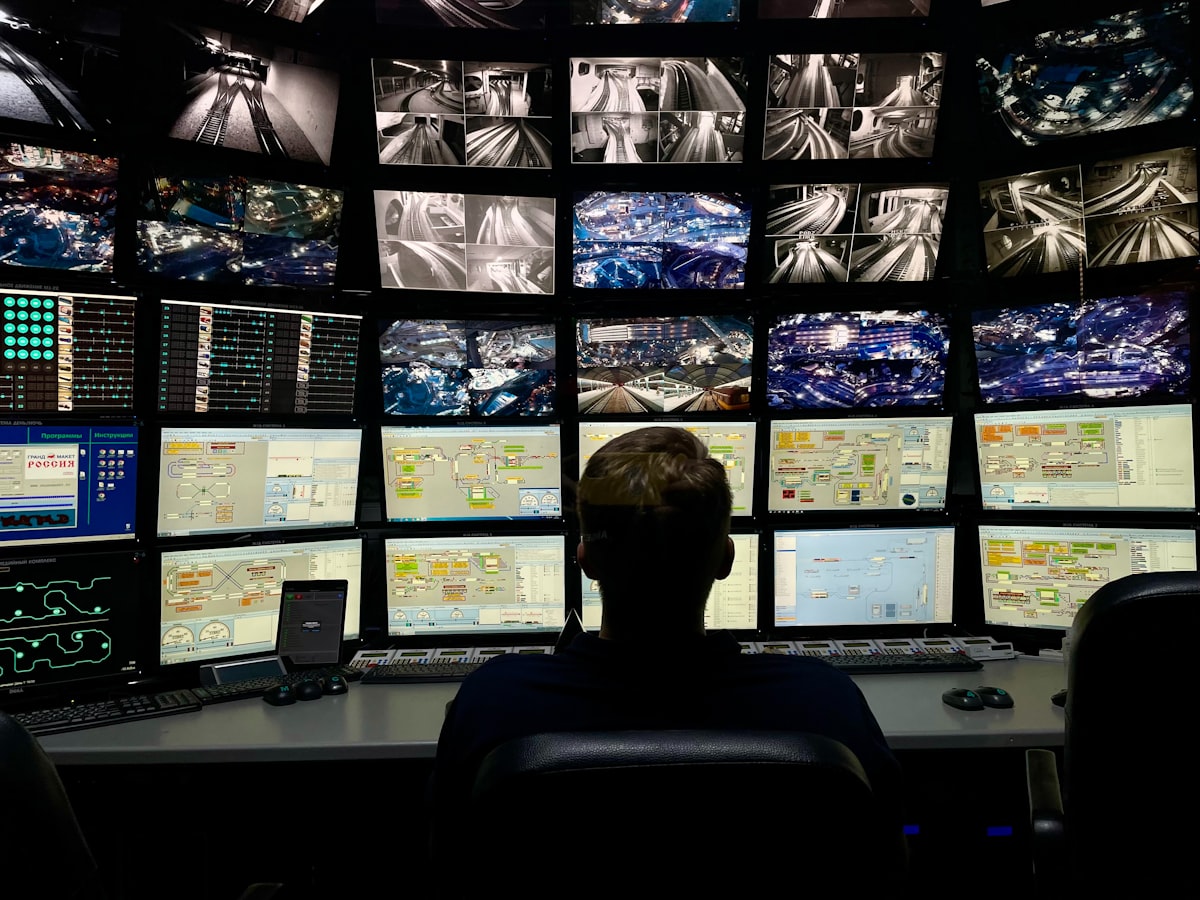
I gave up on cloud cameras a year ago. The breaking point was a Ring notification at 2am that said “person detected” and the snapshot was of a leaf. Two seconds later the app wanted me to upgrade to Ring Protect Plus to see the 30 seconds of video before and after, which is when I finally accepted that the entire industry is built on monetizing my anxiety.
That weekend I bought a Beelink S12 Pro, a Google Coral USB TPU, four Reolink RLC-810A cameras, and a TP-Link 8-port PoE switch. Six months later it all just works, I pay zero dollars a month, and the false-positive rate is so low I forget the cameras exist until they actually catch something interesting.
This is the build log.
What I’m Building
The stack:
- Cameras (4x): Reolink RLC-810A. 4K, PoE, RTSP, no cloud account required.
- Network: TP-Link TL-SG108PE 8-port managed switch with 4 PoE+ ports.
- NVR host: Beelink S12 Pro N100 mini-PC, 16GB RAM, 1TB NVMe.
- AI accelerator: Google Coral USB Edge TPU.
- Software: Frigate 0.14 in Docker, Home Assistant talking to it over MQTT.
The cameras stream H.264 over RTSP to Frigate. Frigate decodes the stream, runs object detection on a sub-sampled frame rate (5fps detect, 30fps record), and publishes events to MQTT. Home Assistant subscribes to those events, surfaces them as binary sensors, and fires whatever automation I want. Nothing leaves my LAN.
Why Not Just Use Ring or Nest?
The honest answer is: because the cloud-camera business model is incompatible with not being anxious all the time. Every notification is engineered to drive engagement. Every “smart” detection is tuned to maximize alerts, not accuracy, because alerts make you open the app, and opening the app makes you more likely to renew. The cameras themselves are loss-leaders for the subscription.
The technical answer is more interesting:
- No cloud round-trip. Frigate detection on Coral is about 6-15ms per frame. Ring’s cloud detection is 2-5 seconds end-to-end. By the time a Ring notification reaches your phone, the person at the door has rung the bell, looked at the camera, and walked away.
- No video leaving your house. This matters more for some people than others. For me it matters every time I look at the camera covering my driveway and think about who, in the chain between Ring, AWS, and law enforcement, has access to that footage on any given day.
- Custom logic. I have an automation that turns the front porch light on when Frigate sees a person in the “porch” zone after sunset, but only if my phone is not at home. Ring will sell you an upsell for half of that. Frigate lets me write 20 lines of YAML and call it done.
Hardware: What Each Piece Actually Does
The mini-PC
I tried this on a Raspberry Pi 4 first. Don’t. Frigate’s RTSP decoding alone eats most of a Pi’s CPU, and adding Coral helps with detection but not with the video pipeline. The Pi runs hot, swaps frequently, and falls behind on any camera with a real bitrate.
The Beelink S12 Pro with the Intel N100 is the sweet spot for a four-camera Frigate install. The N100 has hardware H.264/H.265 decoding via QuickSync, which Frigate uses natively. CPU sits around 12% with four 4K cameras running detection at 5fps. Idle power draw is around 8W. It costs less than what Ring wanted me to pay over two years for cloud storage.
If you want headroom for face recognition or to bolt on Compreface later, the 16GB RAM version is the right call. 8GB is enough for vanilla Frigate but you’ll regret it when you start adding things.
The Coral
The Google Coral USB Accelerator is a small USB-C device that runs Google’s Edge TPU. It does one thing extremely well: it runs quantized TensorFlow Lite models at 4 TOPS while drawing about 2W.
Why you want it:
- Detection latency drops from 80-200ms (CPU) to 6-15ms (TPU). That’s the difference between “noticed the person walking through” and “got three frames of them, lost them mid-frame, picked them back up at the door.”
- CPU stays cool. Without the Coral, Frigate’s CPU object detection runs your N100 hot all the time. With the Coral, the CPU just decodes video and idles.
- The model is good. The default Frigate model on Coral is
mobiledet-edgetpuand it’s surprisingly accurate at detecting people, cars, dogs, and packages without confusing them with shadows.
There’s also a PCIe version and a dual-Edge-TPU M.2 card. For a four-camera install on the N100, the USB version is plenty. If you’re doing 8+ cameras or running multiple detection models simultaneously, look at the dual M.2.
Heads up: the Coral USB has been intermittently available for years. If Amazon has it in stock for under $80, grab it. Mouser and Digi-Key also stock it at MSRP when Amazon is dry.
The PoE switch
The TP-Link TL-SG108PE V3 gives you 8 gigabit ports, 4 of them PoE+ at 30W each, with a 64W total PoE budget. That’s enough for four Reolink RLC-810As (the camera draws about 6W under load). Fanless, metal case, sits on a shelf forever.
If you’re planning 6-8 cameras, step up to a 16-port (TL-SG116PE) or an 8-port with higher PoE budget. PoE+ at 30W per port is overkill for cameras (they don’t need more than 7W), but it gives headroom for the occasional WiFi AP.
The cameras
The Reolink RLC-810A is my pick because it’s:
- 4K (8MP) with a real 1/2.7” sensor
- PoE-powered, so one cable does data and power
- Streams H.264 over RTSP without any account
- IP66 weatherproof, IR night vision, fixed lens
- Cheap enough that losing one to a bad mount doesn’t ruin your day
If you want pan-tilt-zoom, the Reolink RLC-823A and Amcrest IP5M lines work the same way (RTSP, PoE, no cloud needed). I run 4x fixed bullets because PTZ adds moving parts I don’t trust outdoors.
Step 1: Network the Cameras
Run Cat6 outdoor cable from each camera location to the PoE switch. This is the hardest part of the whole build and it’s not even technically hard. It’s just attic and crawl-space work.
Notes from my install:
- Buy more cable than you think you need. 250 feet ran out faster than expected once I had to drop down inside walls.
- Use outdoor-rated UV-resistant cable for any run that sees daylight. Indoor cable cracks and shorts after a year of sun.
- Pre-terminate one end with an RJ45, leave the camera end as bare wire, and run it through whatever conduit / drip loop / wall plate you’re using before crimping the camera-end connector. You can’t pull a terminated cable through a drilled hole.
- Label both ends. A label maker label on the patch panel side and a sharpie mark on the camera end. You will be glad later.
Plug each camera into a PoE port on the switch. The Reolinks boot with a static-ish IP via DHCP in about 30 seconds. Look up their IPs on your router’s DHCP lease table.
Step 2: Set the Cameras to Two Streams
Frigate needs two streams per camera:
- A substream at low resolution (typically 640x480, 5fps) for detection. Lower-res frames are faster to decode and detect on.
- A mainstream at full 4K, 30fps, for recording.
Log into each camera’s web UI (just hit its IP in a browser), go to Settings → Display → Stream → Sub Stream, and set:
- Resolution: 640 x 480
- Frame rate: 5
- Bitrate: 256 kbps
- Encoding: H.264
Leave the mainstream at 4K, 30fps, H.264, 8 Mbps. Reolink defaults are sensible.
While you’re in there: disable Reolink’s onboard motion detection if you want Frigate to be the source of truth. Otherwise you’ll get duplicate events.
Step 3: Install Frigate via Docker
Frigate runs as a Docker container. On the Beelink, I run Debian 12, Docker Engine, and a single docker-compose.yml for Frigate plus the Mosquitto MQTT broker.
The config file (/opt/frigate/config/config.yml) is the meat of the install. Here’s the abridged version:
mqtt:
  host: mqtt.local
  user: frigate
  password: !ENV ${MQTT_PASSWORD}

detectors:
  coral:
    type: edgetpu
    device: usb

cameras:
  driveway:
    ffmpeg:
      inputs:
        - path: rtsp://admin:!ENV ${CAM_PASS}@10.0.1.21:554/h264Preview_01_main
          roles:
            - record
        - path: rtsp://admin:!ENV ${CAM_PASS}@10.0.1.21:554/h264Preview_01_sub
          roles:
            - detect
    detect:
      width: 640
      height: 480
      fps: 5
    objects:
      track:
        - person
        - car
        - dog
    zones:
      driveway:
        coordinates: 0,480,640,480,640,200,0,200
Repeat the cameras: block per camera. Reolink’s RTSP path pattern is /h264Preview_01_main and /h264Preview_01_sub. Other brands differ. The Frigate camera compatibility docs have the patterns for everyone.
Start it:
docker compose up -dThe Frigate web UI lives at http://<beelink-ip>:5000. You should see live snapshots from each camera within 30 seconds. If you don’t, the logs at the bottom of the Frigate UI tell you exactly what’s wrong (usually a wrong RTSP URL or auth issue).
Step 4: Wire Frigate Into Home Assistant
Install the Frigate HACS integration in Home Assistant. After it’s installed, add the integration through the UI, point it at http://<beelink-ip>:5000, and it auto-discovers all your cameras.
You now get, per camera:
- A
camera.<name>entity with live snapshots - A
binary_sensor.<name>_person(and_car,_dog, etc.) that flips on when Frigate detects that object - A
sensor.<name>_person_countfor counts image.<name>_personfor the latest snapshot
That’s the whole API. Everything you build in Home Assistant is normal automations against those entities.
My Favorite Automation
- alias: "Driveway person at night turns on porch light"
  trigger:
    - platform: state
      entity_id: binary_sensor.driveway_person
      to: "on"
  condition:
    - condition: sun
      after: sunset
      before: sunrise
    - condition: state
      entity_id: zone.home
      state: "0"  # nobody home
  action:
    - service: light.turn_on
      target:
        entity_id: light.porch
      data:
        brightness_pct: 100
    - service: notify.mobile_app_jpk
      data:
        title: "Person at the driveway"
        message: "{{ states('sensor.driveway_person_count') }} detected at {{ now().strftime('%H:%M') }}"
        data:
          image: "/api/frigate/notifications/{{ trigger.to_state.attributes.event_id }}/snapshot.jpg"
This sends me a photo of the person in question, attached to the notification, with the porch light already turning on by the time I get the buzz on my watch. Ring wanted $4/month for a worse version of this.
Step 5: Storage
Frigate stores two things:
- Events (the 10-30 second clip around each detection): fast, small, accessed often
- Continuous recordings (24/7 H.264 from the mainstream): large, accessed rarely, sequential read/write only
The right move is two volumes. I keep events on the Beelink’s NVMe and continuous recordings on a 2TB SSD in the second M.2 slot. With four cameras at 8 Mbps, 14 days of continuous recording is about 4TB, so I keep 7 days continuous and 30 days of events, which fits comfortably.
If you want longer retention, mount an external HDD or point Frigate at a NAS share. Spinning rust is fine for continuous recordings since they’re written sequentially and read rarely.
What I Spent
- Beelink S12 Pro 16GB/1TB: $230
- Google Coral USB: $70
- 4x Reolink RLC-810A: $300
- TP-Link TL-SG108PE: $50
- 250ft outdoor Cat6 + connectors: $60
- 2TB SSD: $90
Total: about $800 for a four-camera system with 7+ days of 4K continuous recording, on-device AI detection, full Home Assistant integration, and zero monthly cost forever.
Ring’s equivalent (four cameras + Pro Plus subscription) is about $700 upfront plus $200/year. Frigate breaks even in year one and saves $200 every year after.
What I’d Skip
- The Coral PCIe M.2 dual-TPU version, unless you have more than 6 cameras or are planning to run face recognition models alongside Frigate. The USB version is enough for a normal household.
- Spending more on cameras than the Reolink RLC-810A. Once you hit 4K with a decent sensor, you’re paying for marketing. The $400 Reolink Duo 3 is cool but not 5x better than the $75 RLC-810A.
- DIY-ing the NVR on a Raspberry Pi. I know I said this above but it bears repeating. The N100 mini-PC is $230 and saves you a year of arguing with hardware acceleration on the Pi.
- Synology Surveillance Station, unless you already own a Synology NAS and have free camera licenses. The Frigate experience is better and free.
The Bottom Line
Frigate plus Coral plus Home Assistant is the local-AI camera setup that actually works. Setup is half a Saturday once the wiring is run. Operating cost is the electricity for an N100 mini-PC, which is approximately a single LED light bulb left on. The detection is faster and more accurate than Ring or Nest, the privacy story is “no video leaves your house,” and the automations are exactly as smart as you decide to make them.
If you have any Home Assistant install already running and you’ve been paying a monthly camera fee, this is the highest-ROI weekend project on the entire smart-home build list. Buy the Beelink, the Coral, one camera to prove it out, and a PoE switch. Run the cable. Spin up the container. Add more cameras as you find places that need them. Cancel the cloud subscription. Don’t look back.