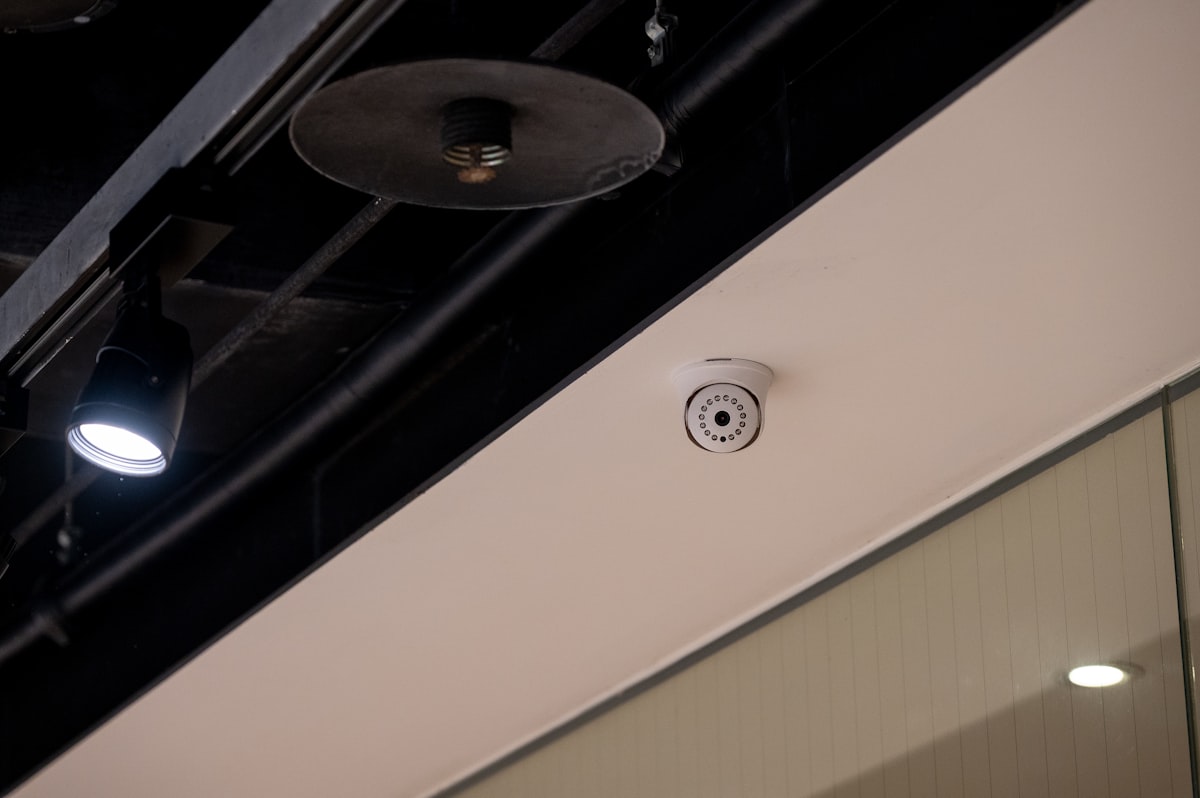
I have a graveyard of PIR motion sensors. Hue, Aqara, Sonoff, off-brand Zigbee, off-brand Z-Wave. They all do the same thing: they fire when you walk into a room, they go quiet after two minutes of stillness, and then they confidently tell Home Assistant the room is empty while you are sitting right there reading a book. Every “lights turn off while I’m still in the room” complaint in your house traces back to this exact lie.
The Aqara Presence Sensor FP2 is the first sensor I’ve owned that fixed it. Six months in, my “auto-off” automations finally do not embarrass me. This is the build log.
What the FP2 Actually Is
The FP2 is a 24 GHz mmWave radar presence sensor. Instead of detecting motion (heat blob moving across a passive infrared lens), it detects presence — the micro-motion of a human body breathing, fidgeting, scrolling on a phone. That is the difference. PIR sees you cross the doorway. mmWave sees you exist.
Other things that matter, in roughly the order I cared about them:
- Multi-zone. You can draw up to 30 zones inside its field of view from the Aqara app. Each zone becomes its own occupancy entity. So one FP2 in a living room can give you “couch occupied,” “reading chair occupied,” “desk occupied,” and “doorway crossed.”
- Wired, not battery. USB-C powered. Plug it into a 5V 2A supply and forget about it. Battery-powered presence sensors do not exist because the radar would eat AAs in a week.
- Local control via HomeKit, then bridged to HA. No cloud round-trip for the actual occupancy signal.
- It also has a light sensor. Modest, but enough to gate “only turn on the lamp if the room is actually dim.”
It is not perfect. We’ll get to the warts. But the core capability — knowing whether a person is in a room, in real time, with sub-second response — is what every other sensor I’ve owned has promised and not delivered.
Hardware Wishlist
- Aqara FP2 presence sensor. Buy one per room you actually want to automate. Do not try to cover two rooms with one sensor through a doorway. It will not work and you will be sad.
- A USB-C 5V 2A power supply. The FP2 ships with a cable but no brick in some regions. A cheap brick is fine; the FP2 draws very little.
- Optional but recommended: an Aqara Hub M3 if you have other Aqara Zigbee gear. Not required for the FP2 itself — it speaks Wi-Fi and HomeKit directly.
- A Home Assistant instance with the HomeKit Controller integration enabled. This is the integration that pairs HomeKit accessories into HA, not the one that exposes HA to HomeKit. They have nearly identical names and people mix them up constantly.
Step 1: Mount It Somewhere That Doesn’t Lie
The FP2 has a wide field of view but it is directional. The mounting position changes the quality of your data more than any software setting. A few rules from doing this several times:
- Mount it on a wall, 4 to 7 feet off the ground, pointed across the room. Not straight down from the ceiling. The radar is designed to see across, not look down.
- Aim it away from doorways into other rooms. Otherwise it will pick up people walking past in the hallway and call your room “occupied” when no one is in it. This is the single most common setup mistake.
- Avoid pointing it at curtains or ceiling fans. Moving fabric and rotating blades show up as motion. Curtains in a draft will flicker the occupancy state.
- Keep it away from other 24 GHz radar sources. Other presence sensors, some baby monitors. Two FP2s in the same room facing each other will confuse both.
I mount mine in the upper corner of each room, on the wall opposite the main seating area, USB cable run down inside a small cable raceway. It looks fine. My partner stopped noticing them within a week.
Step 2: Pair to the Aqara App First
Yes, you do have to use the Aqara app for initial setup. No, you cannot skip it and pair directly to HomeKit. I know, I tried.
- Plug in the FP2.
- In the Aqara Home app, add a new device, pick FP2 from the list.
- Connect it to your 2.4 GHz Wi-Fi network. (It does not support 5 GHz. Make sure your phone is on the 2.4 GHz band during pairing or set up a temporary SSID.)
- Once paired, enable HomeKit in the device settings. The app will show a HomeKit setup code.
Now you can leave the Aqara app behind. It exists for the FP2’s zone-editor UI, which is genuinely the best part of the product, but the day-to-day occupancy data flows through HomeKit and HA.
Step 3: Draw Your Zones
This is the killer feature. Open the FP2 in the Aqara app, tap Zone Setting, and you get a top-down grid of the room as the radar sees it. You draw rectangles. Each rectangle becomes a named zone. The FP2 reports occupancy per zone.
For my living room I drew:
- Couch — the area in front of the TV.
- Reading chair — the corner by the window.
- Doorway — a thin strip across the entrance.
- Whole room — covering everything, as a fallback.
The FP2 also exposes a single “any presence” signal that fires if anyone is anywhere in its view. That’s the one you want for “is this room empty?” The per-zone signals are for finer-grained automations.
Calibrate the zones with the room actually occupied. Sit on the couch, watch the app, confirm the couch zone reports occupied. Get up and walk through the doorway, confirm the doorway zone flickers. The zones are easy to tweak — drag the rectangle corners around until the sensor reports what you’d expect.
Step 4: Bring It into Home Assistant
The cleanest path is the HomeKit Controller integration.
- In Home Assistant, Settings → Devices & Services → Add Integration → HomeKit Device.
- The FP2 should appear in the discovered list with the HomeKit setup code you saw in the Aqara app earlier.
- Pair it.
You will now have, for each zone you defined, a binary_sensor.fp2_<zone_name>_presence entity. Plus the global binary_sensor.fp2_presence. Plus sensor.fp2_illuminance for the light sensor.
One gotcha: HomeKit accessories can only be paired to one controller at a time. If you already had the FP2 in Apple Home, you have to remove it from Apple Home first (or unpair via the Aqara app), then add it to HA. You can then re-add HA’s HomeKit Bridge to expose the entities back to Apple Home, which gives you the FP2 in both. It is a dance but it’s a one-time dance.
Step 5: The Three Automations Worth Building First
The hardware is now feeding HA real, real-time occupancy data. Here is what to do with it.
1. Lights that genuinely turn off when the room is empty
The whole point. The trick is using for: on the off-trigger to absorb the tiny gaps where the FP2 briefly drops presence as you sit still.
- alias: "Living room lights off when empty"
  trigger:
    - platform: state
      entity_id: binary_sensor.fp2_living_room_presence
      to: "off"
      for:
        minutes: 2
  action:
    - service: light.turn_off
      target:
        entity_id: light.living_room
Two minutes is conservative. With a PIR I had this set to fifteen minutes and still got false negatives. With the FP2 I trust two. You can probably push to one once you have a few weeks of confidence.
2. Couch-aware media lighting
This is the automation that made my partner like the FP2.
- alias: "Dim lights when couch is occupied and TV is on"
  trigger:
    - platform: state
      entity_id: binary_sensor.fp2_couch_presence
      to: "on"
  condition:
    - condition: state
      entity_id: media_player.living_room_tv
      state: "playing"
  action:
    - service: light.turn_on
      target:
        entity_id: light.living_room
      data:
        brightness_pct: 20
        kelvin: 2700
The room dims to “movie night” when you sit down on the couch with the TV already going. Get up to grab a drink and the couch zone clears; the lights stay where they are because the room is not empty. Sit back down, they stay dim. There is no way to do this with a PIR.
3. Bedroom: don’t trigger the night routine if someone is still in here
I had a long-standing bug where my “bedtime” routine — close blinds, turn off downstairs, switch upstairs to red light — would fire at 10:30pm whether or not anyone was actually upstairs. With the FP2 in the bedroom:
- alias: "Bedtime routine"
  trigger:
    - platform: time
      at: "22:30:00"
  condition:
    - condition: state
      entity_id: binary_sensor.fp2_bedroom_presence
      to: "on"
  action:
    - scene: scene.bedtime
Two-line condition, eliminated a category of complaint.
What’s Annoying About It
In fairness, four things:
- The Wi-Fi-only thing. I’d much rather it spoke Zigbee or Thread. Aqara has hinted at a Matter firmware. Until then, it is one more device on the 2.4 GHz Wi-Fi.
- The Aqara app is required for zone editing. You cannot edit zones from HA. Not the end of the world, but it means you can’t fully escape the vendor cloud app.
- Pets confuse it less than PIRs but not zero. A 70-pound dog walking through the FP2’s view will register as presence. A cat usually will not. If you have a big dog that uses the couch, expect the couch zone to fire when the dog is on it. Mostly desirable, occasionally not.
- Initial pairing is fiddly. 2.4 GHz only, Aqara app required, HomeKit code dance. Once it’s set up you don’t touch it again, but the first 20 minutes are not friction-free.
None of these are dealbreakers. The hardware is the right hardware. The software friction is one-time.
What About the FP1, FP1E, or the Cheap mmWave Boards?
- FP1: the previous generation. Single-zone, Zigbee, cheaper. If you only need “is the room occupied” and you have a Zigbee mesh, the FP1 is fine. It does not do zones.
- FP1E: Aqara’s budget Wi-Fi single-zone. Half the price of the FP2, no zones. Worth it for closets, garages, laundry rooms — anywhere you don’t need zones, just reliable presence.
- Generic LD2410 / LD2420 boards on ESP32: if you are an ESPHome person, these radar modules are like five dollars and you can build your own. They work. They require code-level tuning and a 3D printed enclosure. I have built a couple. They are great for the price; they are not as plug-and-play as the FP2 and the zone editor on the FP2 is genuinely hard to replicate.
If you only buy one presence sensor and you want the bedroom or living room to stop lying about whether you are in it, get the FP2. If you want eight of them across the whole house and you enjoy soldering, build LD2410-based ones.
The Bottom Line
The Aqara FP2 is the upgrade that fixed every “the lights turned off while I was reading” complaint in my house. Multi-zone presence is the feature you didn’t know your automations needed, until you have it, at which point every PIR you own starts looking like a toy. The Wi-Fi-only design is annoying, the initial pairing is fiddly, and the price per room is real. None of that has stopped me from buying a third one.
If you have Home Assistant and you have ever uttered the words “the motion sensor lied again,” this is the sensor that ends that sentence for good.