At a Glance

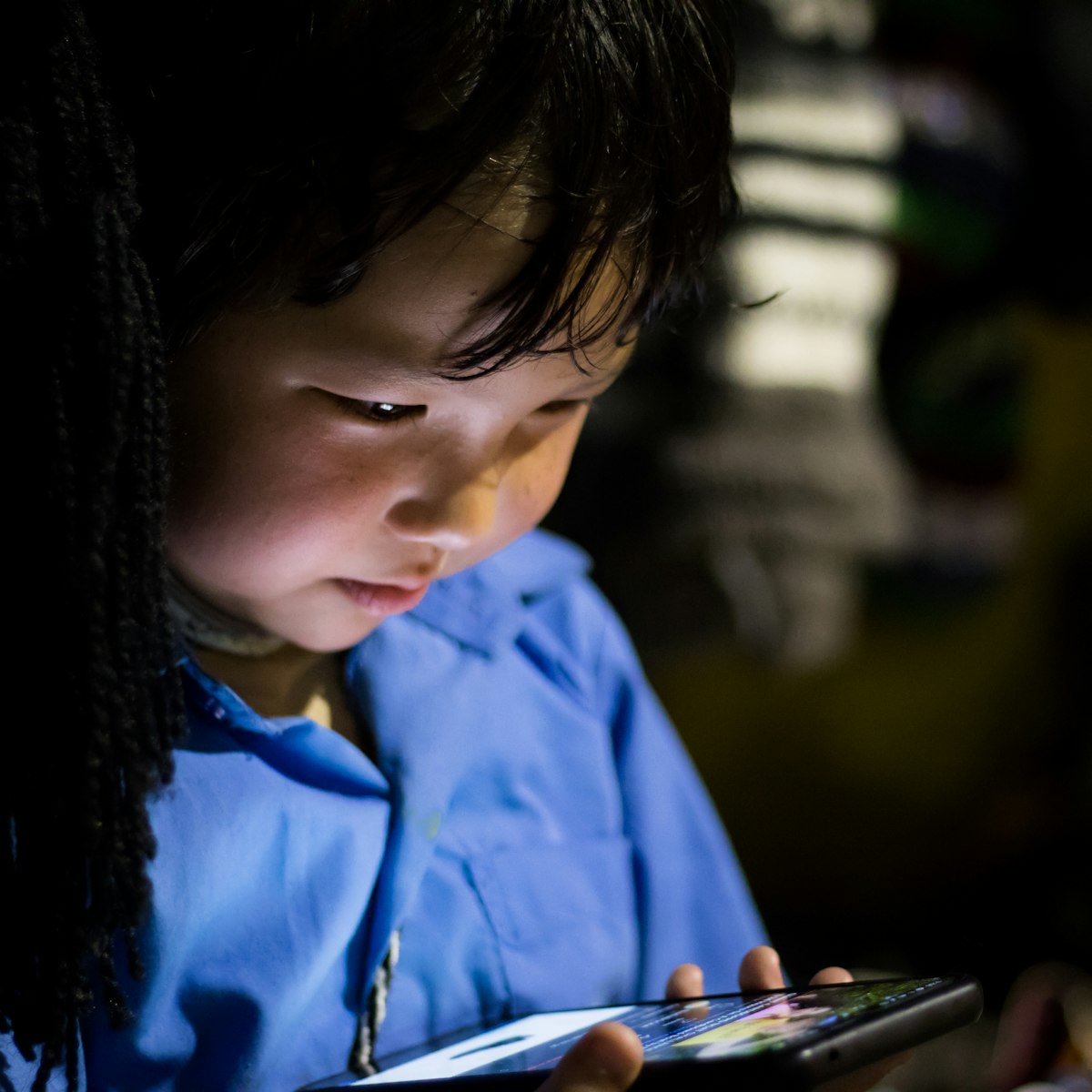
As a software engineer and dad of two girls, I think about kids and technology differently than most parents. I don’t buy into the “screens are evil” panic, but I also don’t hand over an unrestricted iPad and hope for the best. The right tablet with the right setup can be a genuinely valuable learning tool.
We’ve been through a few different tablets in our household. Here’s what actually works, what doesn’t, and how an engineer approaches parental controls.
Quick Picks
| Tablet | Best For | Price |
|---|---|---|
| Apple iPad 10th Gen ⭐ | Best overall — what my family actually uses | ~$350 |
| Amazon Fire HD 10 Kids Pro | Best value, best parental controls | ~$150 |
| Amazon Fire HD 10 Kids | Best for younger kids (3-7) | ~$140 |
What Actually Matters in a Kids Tablet
After real-world testing with my daughters, here’s what I’ve learned:
- Parental controls that actually work — Not just screen time limits, but content filtering you can trust
- Durability — Kids drop things. A lot.
- Educational app ecosystem — Access to apps that teach, not just entertain
- Battery life — Road trips demand 8+ hours
- Value — Kids outgrow things. Don’t overspend.
1. Apple iPad 10th Generation — What I Actually Use ⭐
Both my daughters — Nika (9) and Kira (7) — use the iPad 10th Gen as their daily tablets, and it’s the one I recommend first when friends ask.
I originally thought we’d go the Amazon Fire route for the value and built-in parental controls. But after trying both, we came back to iPad. The app ecosystem is just in a different league, and the kids have grown into it in ways I didn’t expect.
Why it works:
The App Store has everything: Procreate Pocket for art, Swift Playgrounds for coding (Nika has started working through it — genuinely cool to watch), GarageBand, Khan Academy, Duolingo. The creative ceiling on iPad is much higher, and as my daughters get older, the same device grows with them.
Apple’s Screen Time parental controls aren’t as turnkey as Amazon’s, but they’re solid once configured. I can set app time limits, lock content ratings, require passcode approval for downloads, and see weekly usage reports. It takes an hour of setup but works reliably after that.
Both kids have used their iPads for two+ years now. Neither one is broken. We use sturdy cases (I recommend the ZAGG Kids Edition or OtterBox for this age group) — survival rate has been excellent.
What the kids think: Nika uses hers for Swift Playgrounds, reading on the Kindle app, and Procreate. Kira’s favorites are Khan Academy Kids, Toca Boca games, and drawing apps. Neither has hit the limits of the hardware.
What I think: At $350, it’s a real investment — but it’s also the last kids tablet you’ll probably buy for a while. The A14 chip will stay fast for years. The 10.9” Liquid Retina display is genuinely beautiful. USB-C means one cable for the whole family.
Pros:
- Best app ecosystem, period (especially education and creative)
- Beautiful 10.9” Liquid Retina display
- A14 Bionic chip — fast and future-proof through middle school
- USB-C charging
- Works with Apple Pencil (1st gen) for drawing and writing
- Grows with the child for years
Cons:
- $350+ before case (budget for a good one)
- Parental controls require manual setup — not plug-and-play
- No included kid-proof case
- No Amazon-style worry-free replacement guarantee
Best for: Families who want one tablet that serves a 7-year-old today and a 12-year-old in five years. This is the long-term investment pick.
2. Amazon Fire HD 10 Kids Pro — Best Value
The Fire HD 10 Kids Pro is what I recommend when budget is the primary concern — and it’s still a legitimately great tablet.
Why it works:
Amazon’s Kids+ parental controls are genuinely excellent and require almost no setup. Out of the box, you can set per-app time limits, define “educational goals” that must be met before entertainment apps unlock, and review activity reports. As an engineer, I appreciate that the controls are granular without being overwhelming.
The included kid-proof case has a proven track record. The 2-year worry-free guarantee (Amazon replaces it if it breaks, no questions) is real peace of mind at this price point.
What kids think: The Pro version doesn’t look “babyish” — the case is slimmer and the interface is age-appropriate for older kids. Good for Khan Academy, Kindle reading, and YouTube Kids.
What I think: For $150 with a year of Kids+ included, this is exceptional value. If you’re not ready to drop $350+ on an iPad, or your kid is still in the “will probably destroy it” phase, start here. No regrets.
Pros:
- Best parental controls in the market (Amazon Kids+)
- 2-year worry-free guarantee
- 1 year of Kids+ included (~$50 value)
- Kid-proof case included
- 13-hour battery life
- USB-C charging
Cons:
- Amazon’s app store is more limited than Apple’s
- No Google Play access
- Camera quality is mediocre
- Display is good, not great
Best for: Families who want excellent parental controls without the iPad price tag. Also great as a “first tablet” before upgrading to iPad later.
3. Amazon Fire HD 10 Kids — Best for Younger Kids
The standard (non-Pro) Fire HD 10 Kids is the same hardware as the Pro, but with a chunkier case and a simplified interface designed for ages 3-7.
Pros:
- Same great hardware and parental controls as the Pro
- Chunky foam case is nearly indestructible
- Simplified interface is perfect for younger children
- Same 2-year worry-free guarantee
Cons:
- The chunky case is embarrassing for older kids
- Limited functionality compared to the Pro
- Same app store limitations
Best for: Families with kids under 7 who want maximum protection and age-appropriate content curation.
Comparison Table
| Feature | iPad 10th Gen | Fire HD 10 Kids Pro | Fire HD 10 Kids |
|---|---|---|---|
| Price | ~$350 | ~$150 | ~$140 |
| Display | 10.9” Liquid Retina | 10.1” 1080p | 10.1” 1080p |
| Parental Controls | Good (Screen Time) | Excellent (Kids+) | Excellent (Kids+) |
| Case Included | No | Yes (slim) | Yes (chunky) |
| App Store | Apple App Store | Amazon | Amazon |
| Battery | 10 hours | 13 hours | 13 hours |
| Replacement Guarantee | No | 2 years | 2 years |
| Age Range | 7+ | 6-12 | 3-7 |
| USB-C | Yes | Yes | Yes |
What I Actually Use
Both my daughters use iPad 10th Gen tablets. Nika (9) is into Swift Playgrounds and Procreate; Kira (7) loves Khan Academy Kids and drawing apps. Same device, different stages, both love them.
My setup for Screen Time parental controls:
- Daily educational goal: 30 min of Khan Academy or Kindle reading before entertainment apps
- Content restrictions: Age-appropriate ratings locked, download approvals required
- Downtime: All apps lock at a set bedtime, no exceptions
- Communication limits: FaceTime only with approved contacts
- Weekly review: I check Screen Time reports every Sunday
The “goals before games” approach works much better than hard time limits alone. Give kids a clear path to entertainment and they’ll do the educational work.
An Engineer’s Guide to iPad Parental Controls
Apple Screen Time isn’t as turnkey as Amazon Kids+, but here’s my setup that works well:
- Go to Settings → Screen Time → Turn On Screen Time
- Set a Screen Time passcode (different from your device passcode)
- Content & Privacy Restrictions → enable, set age-appropriate content ratings
- App Limits → set daily limits for Entertainment, Games, Social Networking categories
- Downtime → schedule “off” hours (evenings, school hours)
- Always Allowed → whitelist Phone, Messages, specific educational apps
Takes about an hour the first time. After that, mostly runs itself.
FAQ
What age should kids get a tablet? Every family is different, but starting with limited, supervised use around kindergarten age and gradually increasing independence with proper parental controls has worked well for us.
Is screen time really that bad? The research is more nuanced than the headlines suggest. Passive consumption (endless YouTube) is concerning. Active engagement (coding games, reading, creative apps) can be genuinely educational. The type of screen time matters more than the total amount.
Can kids learn to code on a tablet? Yes! Swift Playgrounds on iPad is surprisingly good — Nika has been working through it and genuinely enjoys it. On Fire tablets, apps like ScratchJr and Kodable teach coding concepts effectively to younger kids.
Should I get a tablet or a Chromebook? For under 10, a tablet. The touch interface is more natural for younger kids. For 10+, a Chromebook becomes more practical for school work (typing, Google Docs).
What about a regular iPad vs iPad Air? The 10th Gen iPad is more than enough for kids. The Air’s extra performance is wasted on educational apps and YouTube.
This post contains affiliate links. If you buy something through these links, I may earn a small commission at no extra cost to you. I only recommend products my family has actually used.